
Direct answer
A strong image-to-video prompt starts with a stable source frame, one camera or subject motion, and one constraint that protects shape, text, or identity. Keep the first test short, review artifacts, then use Voloshow tools for source-frame fixes, resize, or compression after approval.

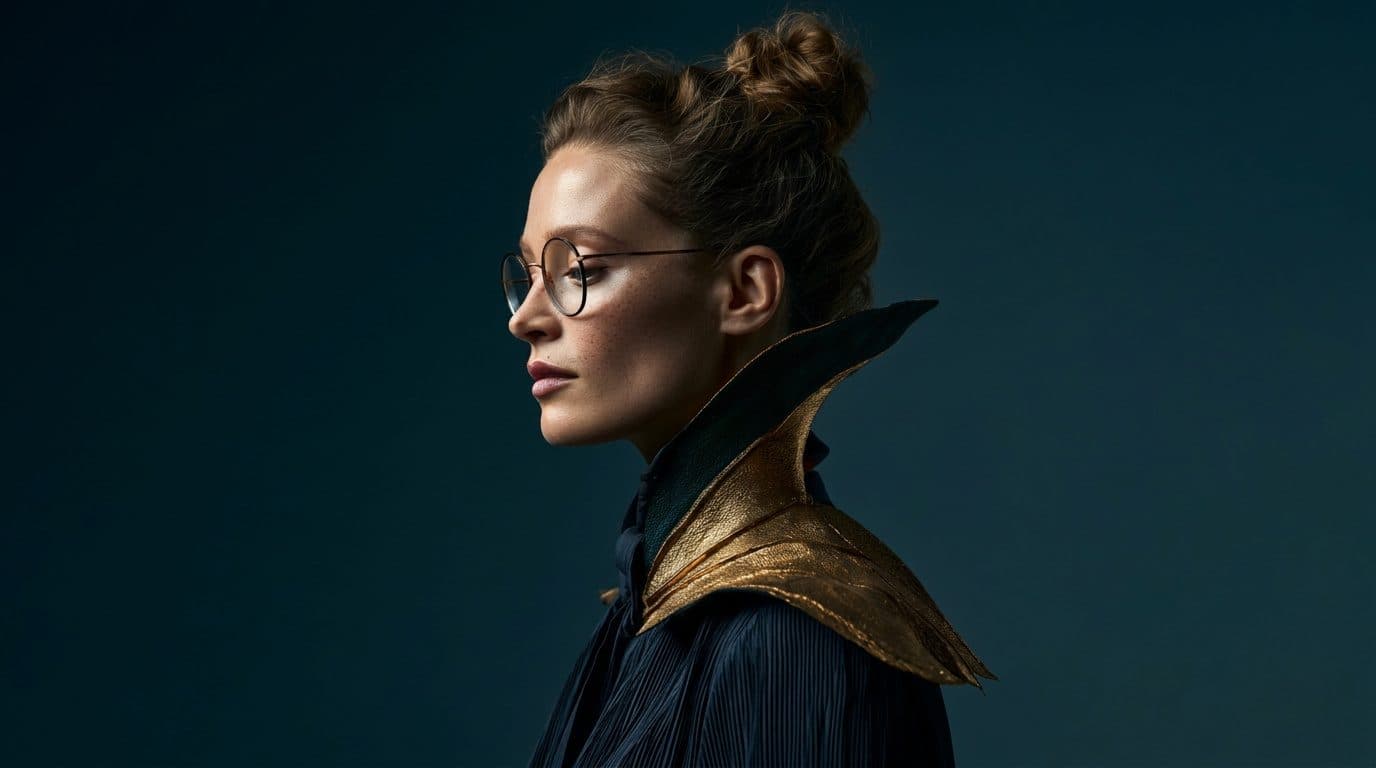
Start with the source frame
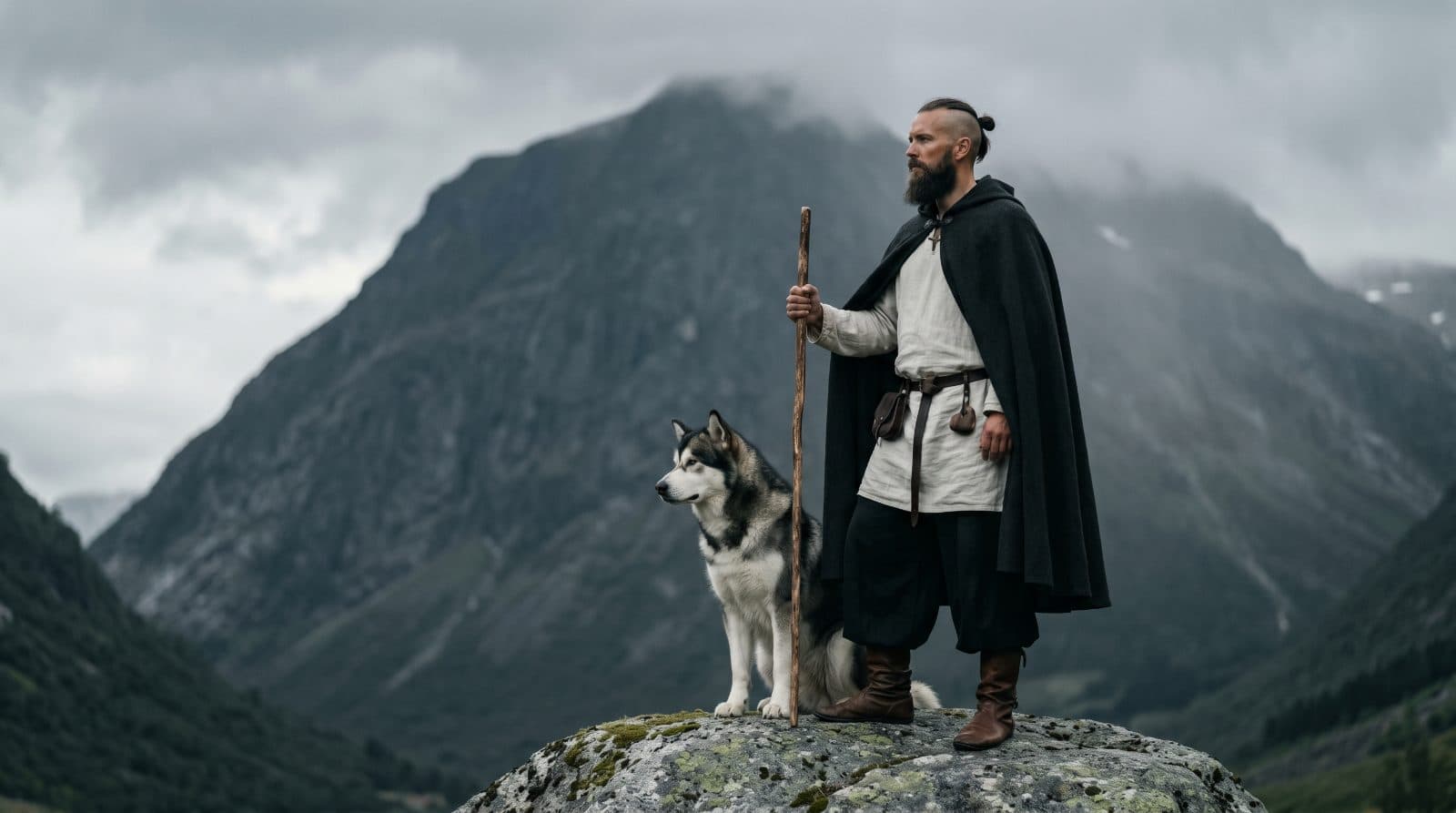
Image-to-video prompting starts before the video prompt. The source frame should already define the subject, material, light direction, crop, and negative space. If the still image has product errors, tiny text, extra objects, or rights problems, motion will usually make those problems harder to review.
Write motion as a separate layer
The motion prompt should be short: slow dolly-in, camera orbit, light sweep, subtle paper movement, vertical reveal, or gentle drift. A short motion layer helps you evaluate the output and keeps the model from rewriting the whole scene.
Step-by-step Voloshow workflow
Create or upload a stable source image, write one motion sentence, check the current video route and estimate, run a short test, then review artifacts. If the result deforms the subject, return to the source image and simplify the motion.
Common mistakes
Do not ask for new typography, fake app UI, or a full multi-shot story inside one beta prompt. Avoid protected identities and unowned brands. Do not treat the first clip as publish-ready until a human reviews artifacts, claims, rights, and product truth.
Internal tool CTA
Use Generate or Image to Prompt when you need a better source frame. Use the Video route for the motion test. Use Resizer and Compressor only after the video or source image is approved for the channel.
Record accepted motion tests
When a short clip passes review, keep the source frame, motion prompt, target ratio, selected route, and rejection notes for failed attempts. This turns one successful test into reusable guidance and prevents teams from repeating prompts that caused flicker, deformation, or new text.
Image-to-video prompt anatomy
A strong image-to-video prompt has four parts: source-frame description, camera or subject motion, stability constraint, and review boundary. The source frame tells the workflow what should remain recognizable. The motion describes one change. The stability constraint protects product shape, identity, or layout. The review boundary explains what should not appear, such as new text, extra props, fake UI, or altered packaging. Keeping these parts separate makes the prompt easier to debug and easier for teammates to review.
- Describe one source frame.
- Ask for one motion.
- State what must stay stable.
Motion library
Useful first tests include slow push-in, soft camera orbit, light sweep, shadow reveal, subtle texture movement, background parallax, and short product turn. Avoid multi-scene stories in the first pass. A simple motion library helps teams compare outputs because every clip has one measurable goal. If a slow push-in deforms the product, the source frame or stability constraint needs work. If a light sweep introduces new text, the prompt should explicitly prevent generated lettering and overlays.
Beta risk review
Beta video results need stricter review than still images because artifacts can appear across time. Check the first and last frame, then scrub through the middle. Look for object warping, hand or face drift, changed labels, flickering shadows, unreadable text, and motion that makes the subject look less trustworthy. For product content, compare the clip against the original source image. For social or editorial content, check that the motion does not create platform UI, captions, or claims that were never approved.
Internal tool handoff
Use Generate or Image to Prompt when the source frame needs improvement. Use the video route only after the still frame is stable and rights-safe. Use Image Resizer and Image Compressor after the visual direction is approved. If the clip fails because the source frame is weak, do not keep spending video attempts. Return to the still image, simplify the composition, and write a shorter motion prompt. This loop keeps costs and review risk under control.
Clip selection and recordkeeping
When several video drafts are generated from the same source frame, save the accepted clip with the exact motion prompt, source image, route, estimate, and rejection notes for the unused versions. The rejection notes are often more useful than the winning prompt because they explain which motions caused warping, flicker, identity drift, or new text. Over time, this record becomes a practical motion library for the team and reduces repeated beta experiments on the same failure pattern.
QA loop for short clips
Review short clips in three passes. First, check the opening frame against the source image. Second, scrub through the middle for warping, flicker, and accidental scene changes. Third, inspect the final frame for new text, changed labels, or product drift. If one pass fails, return to the still image or simplify the motion prompt. This loop is slower than accepting the first dramatic result, but it produces clips that can survive stakeholder and policy review.
Prompt pack operations
For a reusable prompt pack, store each motion prompt with the intended source-frame type, ratio, duration expectation, and failure pattern. A prompt for product orbit should not be reused for a book-cover reveal without changing stability rules. A prompt that works for abstract paper texture may fail on packaging with labels. Keeping these notes visible turns the guide into an operations asset: users can copy a starter, understand when it applies, and decide whether Generate, Image to Prompt, or Video is the right next route.
Workflow steps
- 1
Prepare a stable source image
Use a frame with one subject, clean edges, consistent light, and no text you expect the model to preserve perfectly.
- 2
Write one motion request
Ask for one camera move or one lighting change rather than a full scene rewrite.
- 3
Run the available video route
Use the `/video` workflow only when your account and current Product catalog support the route.
- 4
Review artifacts before reuse
Check for deformation, identity drift, product inaccuracies, and unexpected text before publishing or remixing the draft.
Publishing and workflow notes
| Author | Voloshow Editorial |
|---|---|
| Updated | 2026-06-06 |
| Status | Prompt guide for beta video workflows. |
| Review | Source rights, subject stability, text artifacts, product truth, queue/cost visibility. |
Common mistakes to avoid
- Uploading a source frame with unstable product geometry or multiple competing subjects.
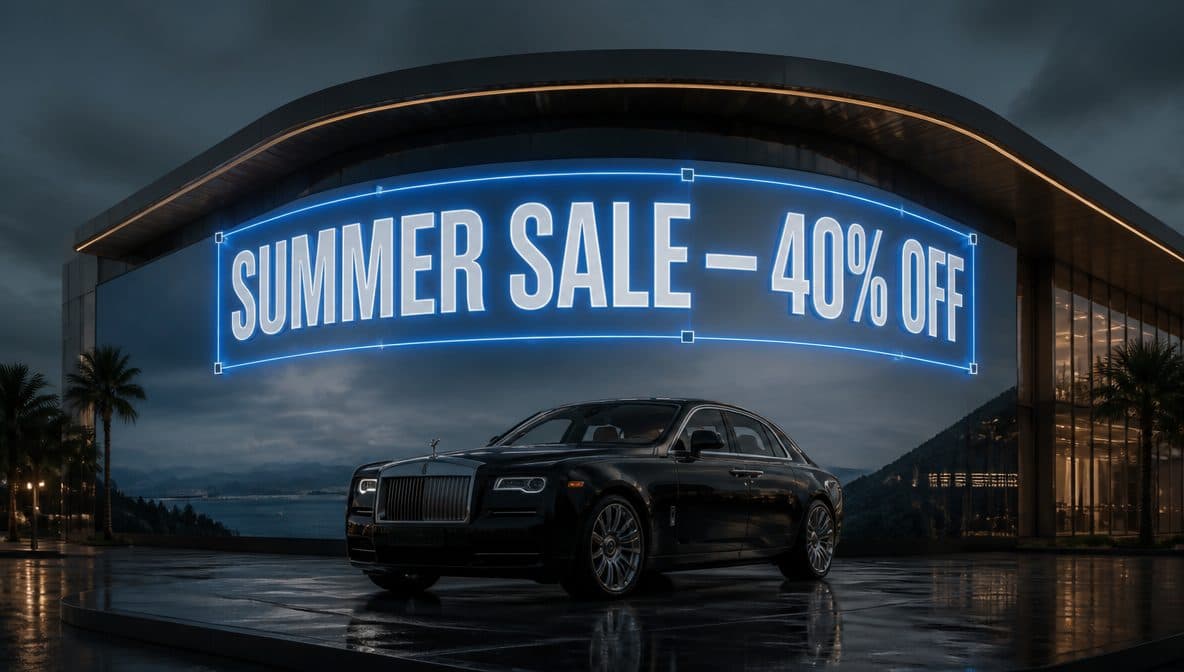
- Asking for new text, logos, or UI overlays inside the video prompt.
- Treating beta outputs as publish-ready without reviewing artifacts and rights.
Prompt examples
Copy-ready starts
Copy an example, then replace the subject and production details with material you can use.
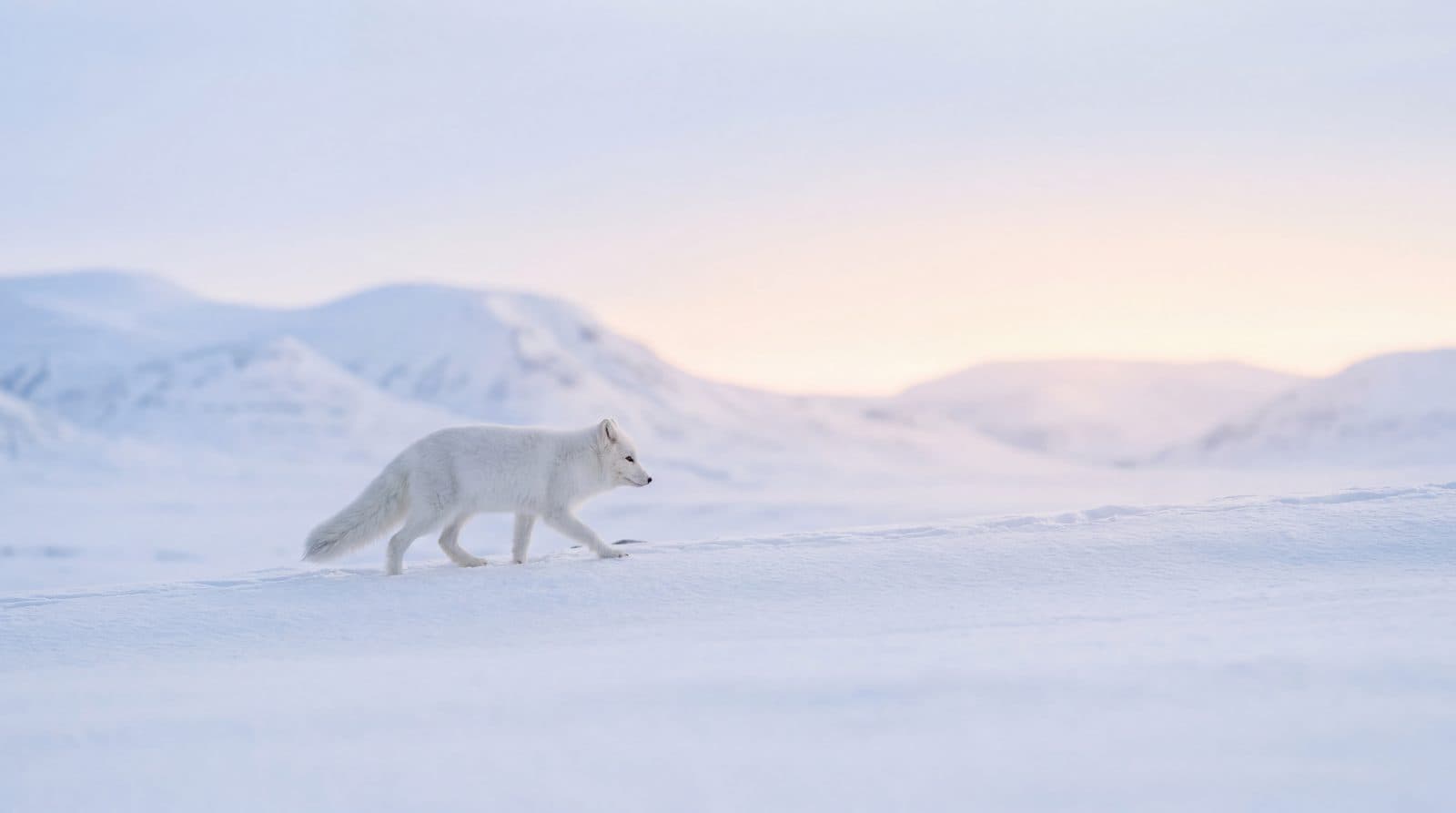
Animate this product frame with a slow camera orbit, realistic shadow shift, stable silhouette, preserved product geometry, premium commercial lighting, no new text.
Subtle paper movement and a slow light sweep across a minimal poster frame, preserve all shapes, no new typography, no subject deformation, short commercial pacing.
Gentle rightward camera drift through a clean studio scene, foreground subject remains stable, natural depth change, restrained motion, no extra objects appearing.
A short vertical product reveal where the object slides from shadow into soft studio light, stable background, realistic reflection, no fake UI or captions.
A seamless product loop with a slight object turn under softbox light, consistent perspective, subtle shadow drift, no identity changes, no readable text.
Slow push-in toward a stable source frame, product remains centered, soft highlight roll, realistic shadow change, no new text or extra props.
A vertical product source frame with a gentle reveal from shadow to light, clean background, no social UI, no captions, short mobile-safe motion.
A seamless short loop where the subject turns slightly under studio light, consistent perspective, no object deformation, premium commercial pacing.
Gentle camera drift across a creator workspace source frame, main object stays sharp, background parallax remains subtle, no readable screen text.
Subtle paper texture movement and light sweep across a poster-like still, preserve composition, no new typography, no scene rewrite.
FAQ
Frequently asked questions
A strong prompt uses one stable source image, one short camera or subject motion, and one review boundary such as preserving shape or avoiding new text.
No. Keep the first test short and reviewable. One scene, one subject, and one motion usually works better than a full script.
Yes, but review the source image first for rights, product truth, identity issues, and text artifacts before using it for video.
Avoid fake UI, readable generated text, restricted likenesses, unowned brands, multi-scene rewrites, and claims that need legal review.
Video credits depend on the active Product catalog, model, queue, and account configuration. Check the estimate shown in the workflow.
Keep exploring
Related features
Related use cases
Related tools
Next action
Write one motion prompt for one stable source image.
Prepare a still frame first, then test the available video route with a short, reviewable motion request.

Voloshow Editorial
Practical, source-aware guides for AI image, editing, product, and video workflows.