


Availability and promise boundary
This page is marked beta. Voloshow does not claim unsupported model access, marketplace approval, or guaranteed commercial rights.
Example media
Reviewed visual examples
How to use in Voloshow
Workflow steps
- 1
Prepare a stable source image
Use a frame with one subject, clean edges, consistent light, and no text you expect the model to preserve perfectly.
- 2
Write one motion request
Ask for one camera move or one lighting change rather than a full scene rewrite.
- 3
Run the available video route
Use the `/video` workflow only when your account and current Product catalog support the route.
- 4
Review artifacts before reuse
Check for deformation, identity drift, product inaccuracies, and unexpected text before publishing or remixing the draft.
Specs
Specs, availability and credits
| Status | Beta Treat image-to-video as a test workflow unless your account and catalog show production readiness. |
|---|---|
| Availability | Available through the `/video` route when Product catalog and account access support it. |
| Credits | Estimated by the active video model and queue configuration, not hardcoded on this page. |
| Inputs | Owned source image, short motion prompt, aspect ratio and review notes. |
| Output | Draft video clip that needs artifact, rights, and content review. |
Common mistakes
Avoid these before publishing
- Uploading a source frame with unstable product geometry or multiple competing subjects.
- Asking for new text, logos, or UI overlays inside the video prompt.
- Treating beta outputs as publish-ready without reviewing artifacts and rights.
Next action
Turn one stable image into a short motion test.
Start with a source frame you own, write one controlled motion prompt, and review the beta output before publishing.
What image-to-video needs
Image-to-video works best when the source image is stable and the prompt asks for one controlled motion. The page should help users prepare source frames, write short motion prompts, understand beta limits, and review outputs before publishing.
Voloshow beta path
Create or upload a source image, describe the motion, review cost and queue behavior, then test the available video route. Keep the source image rights-safe and assume every beta video needs human review before external use.
- Use owned images.
- Avoid identity-sensitive subjects.
- Review each output before publishing.
Case comparison
A product orbit needs a centered product and controlled shadows. A poster animation needs a stable layout and no new typography. A social reveal needs vertical crop planning and no fake app UI. Each case should be prepared as a separate prompt rather than one overloaded request.
Review before publishing
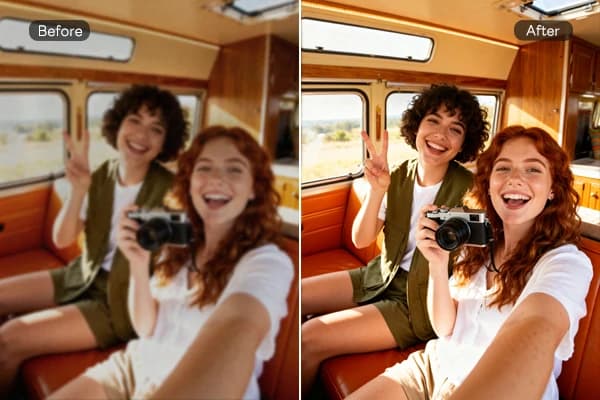
Before a beta clip leaves Voloshow, compare the video against the original source frame. Look for warped product edges, changing logos, extra fingers or props, drifting backgrounds, unreadable text, and changes in lighting that make the scene feel synthetic. If the clip is for ecommerce or paid media, keep a screenshot of the accepted source frame next to the draft video so reviewers can confirm what changed and what stayed stable.
Prompt examples
Copy-ready starts
Copy an example, then replace the subject and production details with material you can use.
Animate this product frame with a slow camera orbit, realistic shadow shift, stable silhouette, preserved product geometry, premium commercial lighting, no new text.
Subtle paper movement and a slow light sweep across a minimal poster frame, preserve all shapes, no new typography, no subject deformation, short commercial pacing.
Gentle rightward camera drift through a clean studio scene, foreground subject remains stable, natural depth change, restrained motion, no extra objects appearing.
A short vertical product reveal where the object slides from shadow into soft studio light, stable background, realistic reflection, no fake UI or captions.
A seamless product loop with a slight object turn under softbox light, consistent perspective, subtle shadow drift, no identity changes, no readable text.
FAQ
Frequently asked questions
Treat it as a beta workflow unless the current Product model catalog and queue behavior prove otherwise for your account.
Use an owned image with one clear subject, stable lighting, no tiny text, and enough surrounding space for camera motion.
Keep it short. One camera movement, one lighting change, or one subject action is easier to review than a full scene rewrite.
Avoid fake text, restricted likenesses, unowned brands, complex multi-scene edits, and claims that need legal or marketplace review.