Direct answer
To extend a GPT Image 2 prompt, write one clear output type, one subject, material and lighting controls, crop or camera guidance, and a final review boundary. Generate a small comparison set, keep the most reviewable image, then move cleanup, resizing, or compression into a focused Voloshow tool.
Prompt layers that matter
The strongest prompt layer is not a style word. It is a decision the reviewer can evaluate: what the image is for, what subject must stay true, what material should be visible, how light behaves, what crop is needed, and what the output must avoid.
- Output type and subject.
- Material, light, lens, crop.
- One negative or review boundary.
Step-by-step workflow
Start in Generate, paste a structured prompt, compare a small batch, and decide whether the next task is visual generation or finishing. If the selected image only needs a background, resize, or compression change, do not rewrite the prompt. Use the matching Voloshow tool.
Handoff from prompt to tool
Record the prompt, ratio, selected candidate, and rejection reason for failed candidates. This makes prompt work reusable and prevents teams from spending more credits on problems that a focused image utility can solve faster.
Workflow steps
- 1
Name the output
Write product photo, poster, book cover art, social image, render, or source frame before style details.
- 2
Add visual controls
Specify material, light, camera angle, ratio, and composition in reviewable language.
- 3
Generate a small set
Compare a focused batch and change only the failure point in the next attempt.
- 4
Finish with tools
Use dedicated Voloshow tools for background, resize, compression, enhancement, or prompt extraction.
Publishing and workflow notes
| Prompt layer | Subject, output type, material, light, camera or crop, review boundary. |
|---|---|
| Best for | Product images, posters, book covers, social visuals, source frames. |
| Next tool | Image to Prompt, Background Remover, Image Enhancer, Resizer, Compressor. |
| Review | Rights, likenesses, product truth, text artifacts, final usage. |
Common mistakes to avoid
- Adding more adjectives when the output type, crop, or material is missing.
- Asking generation to handle final typography, export size, and policy review in one step.
- Changing every prompt variable after one weak result instead of fixing the specific failure.
Prompt examples
Copy-ready starts
Copy an example, then replace the subject and production details with material you can use.
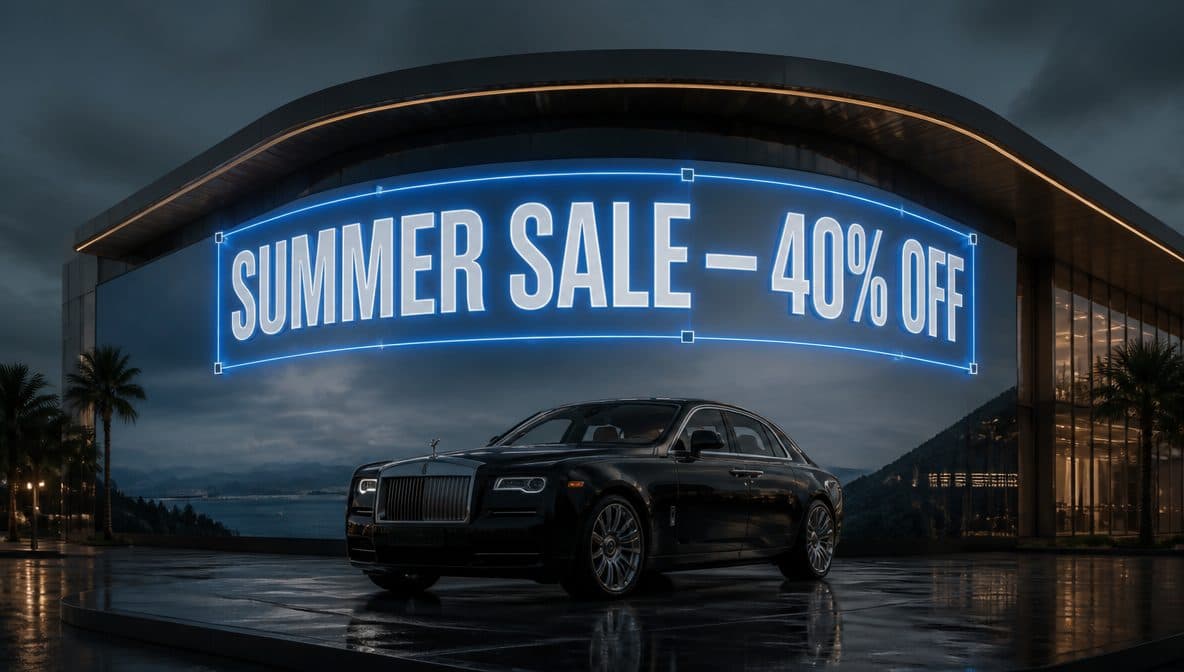
A precise studio product hero image of an owned matte ceramic speaker on a graphite plinth, crisp grounding shadow, softbox reflection, realistic texture, no logo or generated text.
A no-text campaign poster art concept for an AI creative studio, monochrome paper set, one scarlet accent line, strong negative space, realistic print grain.
A stable source frame for image-to-video, one centered product, consistent light direction, clean background, enough edge space for a slow camera move.
Describe the reference as subject, material finish, lens angle, shadow direction, aspect ratio, and intended output use for a clean commercial concept.
A square social campaign visual with one hero object, layered paper set, blank copy-safe area, realistic studio lighting, no fake platform UI.
A no-text book cover art concept with a single symbolic object, dramatic shadow, clean title-safe space, original scene, no known characters.
A concept architecture render of a small timber pavilion, clear scale cues, morning light, garden context, presentation mood study, not construction documentation.
An original fashion concept image for a structured wool coat, clean studio light, visible fabric texture, no designer names, no brand logos.
FAQ
Frequently asked questions
Name the output type, subject, material, light, camera or crop, usage context, and one review boundary before adding style adjectives.
No. Use a structured base prompt, compare a small set of outputs, then make targeted edits or move to a dedicated tool.
No. It adds production handoff patterns and example formulas for users who already understand the basic prompt structure.
Generate pairs with Image to Prompt, Background Remover, Image Enhancer, Image Resizer, and Image Compressor depending on the finishing task.
Keep exploring
Related use cases
Related tools
Related prompts
Next action
Run the layered prompt formula in Generate.
Start with one output type and one review boundary, then finish accepted images with the right Voloshow utility.

Voloshow Editorial
Practical, source-aware guides for AI image, editing, product, and video workflows.