What users mean by Google Flow AI
Searches usually ask what the workflow is, what inputs matter, and how to move from image concepts into video planning. The useful answer is a workflow explanation, not a fake clone page. In Voloshow, that means explaining source frames, prompt translation, motion language, review boundaries, and the available routes users can actually open.
Plan the creative system first
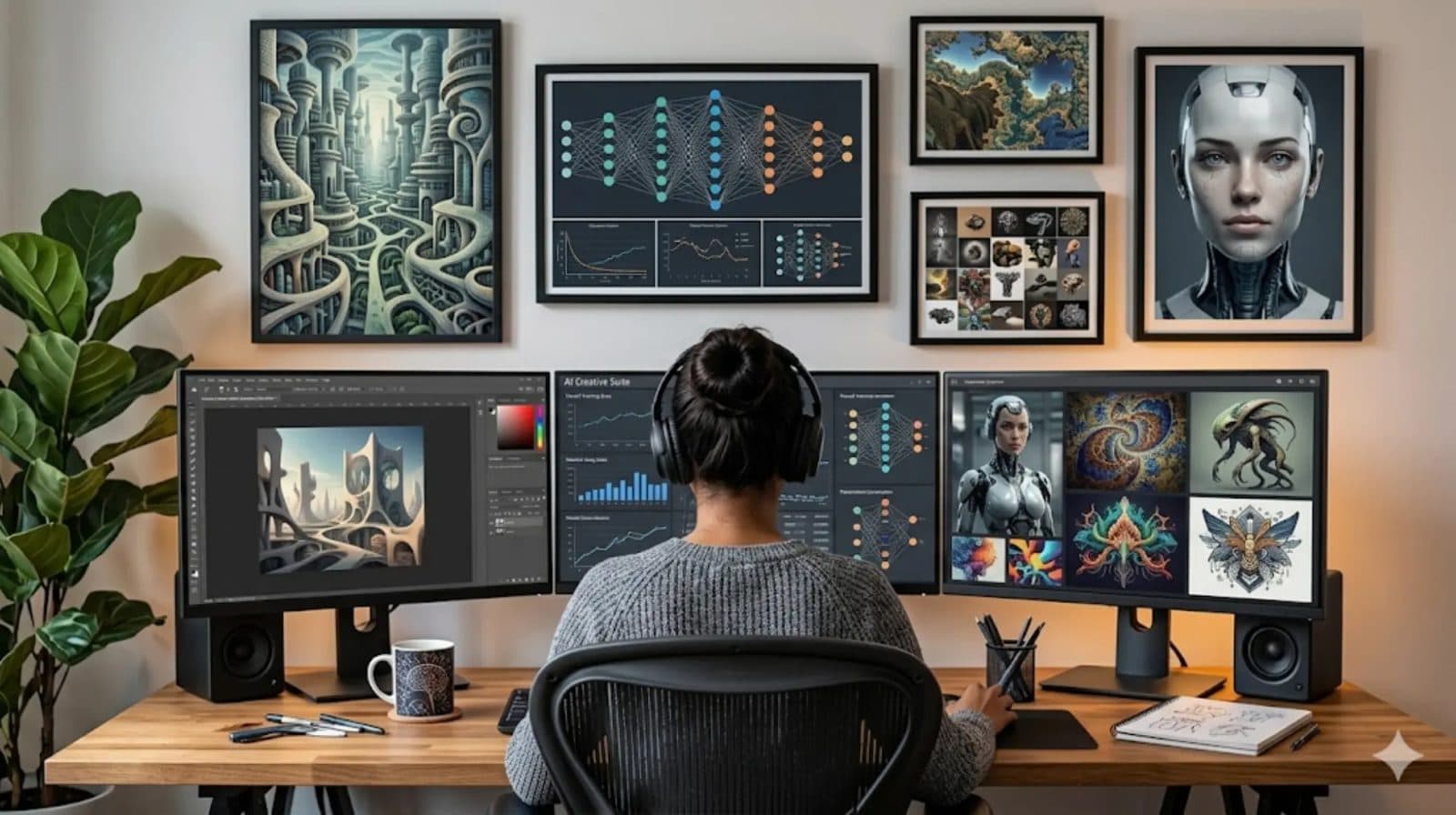
A strong video workflow starts with source frames, camera language, continuity, and a short prompt for motion. Voloshow can help create and refine the image assets used in that plan. A stable source image should define subject, scale, light direction, and empty motion space before the video prompt asks for movement.
Step-by-step workflow
Create or upload a source image, use Image to Prompt if you need to translate a reference, choose the camera move, then try the available video route. Keep the first test short and reviewable. If the source image contains text, tiny labels, or protected marks, fix those issues before asking for motion.
Common mistakes
The biggest mistake is writing as if every trending video model is available inside every tool. The next is asking a video prompt to solve product truth, rights, text, and composition problems that belong in the source frame. Keep provider language factual and move complex fixes earlier in the workflow.
Where Voloshow fits
Use the image generator for keyframes, image-to-prompt for reference translation, and the video route for supported generation workflows. The page should link users to those concrete actions instead of leaving them on a research-only article.
Review notes before routing
Before a source frame moves from planning into a video route, record why the image passed review: the subject is stable, the motion space is visible, rights are clear, and no provider claim is implied by the page itself. This short note keeps the overview useful for creators and keeps the article aligned with Voloshow availability.
Source-frame quality standard
A source frame for Google Flow-style planning should already answer the questions a video prompt cannot reliably fix: what is the subject, where is the camera, how does light hit the scene, what should stay still, and what can move? The frame should have enough empty space for motion, a clear subject silhouette, and no tiny generated text that must remain readable. If the frame is unstable, the motion prompt has to solve composition, identity, lighting, and continuity at the same time. That makes the final clip harder to review and easier to reject.
- Use one main subject and one visible light direction.
- Leave room for the camera move or reveal.
- Remove unreadable text and unowned marks before motion.
Motion prompt patterns
Write motion as a short instruction layer, not as a full screenplay. Useful patterns include a slow push-in, a gentle camera orbit, a light sweep across a product, subtle fabric or paper movement, a vertical reveal from shadow to light, or a small parallax drift across a desk scene. Each pattern can be reviewed against the still frame. If you ask for a new scene, new props, new typography, and a camera move in one instruction, the result may look more dramatic but it becomes much harder to decide what went wrong.
Where Voloshow fits in production
Voloshow is useful before and after the video test. Before testing, use image generation or Image to Prompt to create and describe keyframes. During testing, keep the video prompt short and route only through available account capabilities. After testing, use resize and compression workflows for approved assets instead of spending more video credits on formatting. This keeps the page honest: it explains a creator workflow around Google Flow-style intent without claiming that Voloshow is Google Flow or that every searched model is available.
Editorial update policy
This article should be refreshed when two things change: public provider facts and Voloshow Product catalog availability. If provider names, public model capabilities, or accepted input patterns change, the overview language should change. If Voloshow adds or removes a related video route, the CTA and availability notes should change before any prompt examples are promoted. That keeps the article indexable as an overview while preventing it from drifting into unsupported feature claims.
Production handoff checklist
For an internal production handoff, keep the keyframe set, motion prompt, ratio, source-rights note, and review decision together. Mark which parts were created in Voloshow and which parts are only planning language for another video system. If the team later tests a supported video route, record the queue, estimate, and accepted clip beside the source frame. That record helps editors compare results without rewriting the article as a provider claim or a benchmark page.
Measurement without fake benchmarks
Measure the workflow by reviewability instead of unsupported model rankings. Useful signals include whether the source frame is reusable, whether motion instructions stay short, whether the clip can be reviewed against one accepted frame, and whether a teammate can reproduce the setup from the notes. Do not publish speed, quality, or provider comparisons unless they come from a documented test that the page is allowed to cite. For this overview, practical preparation quality is the measurable outcome.
Workflow steps
- 1
Plan the frame before the motion
Use Generate to create a stable keyframe or upload owned source material with one clear subject.
- 2
Write motion as a separate sentence
Keep camera movement short: dolly-in, slow lateral drift, light sweep, orbit, or reveal.
- 3
Check the provider boundary
Treat this page as a workflow overview and use only the available Voloshow routes shown in your account.
- 4
Review before publishing
Check identity, product truth, rights, artifacts, and claims before using a generated video draft.
Publishing and workflow notes
| Author | Voloshow Editorial |
|---|---|
| Updated | 2026-06-06 |
| Status | Editorial overview, not a Google Flow product page. |
| CTA boundary | Routes to related Voloshow image and video workflows only. |
Common mistakes to avoid
- Writing as if Voloshow is Google Flow or has official Google Flow access.
- Using a source frame with multiple competing subjects and then asking for complex motion.
- Expecting a video prompt to fix product, text, brand, or rights problems in the source image.
Prompt examples
Copy-ready starts
Copy an example, then replace the subject and production details with material you can use.
Animate this product frame with a slow camera orbit, realistic shadow shift, stable silhouette, preserved product geometry, premium commercial lighting, no new text.
Subtle paper movement and a slow light sweep across a minimal poster frame, preserve all shapes, no new typography, no subject deformation, short commercial pacing.
Gentle rightward camera drift through a clean studio scene, foreground subject remains stable, natural depth change, restrained motion, no extra objects appearing.
A short vertical product reveal where the object slides from shadow into soft studio light, stable background, realistic reflection, no fake UI or captions.
A seamless product loop with a slight object turn under softbox light, consistent perspective, subtle shadow drift, no identity changes, no readable text.
A polished keyframe of a creator workspace, camera angled from above, abstract storyboard cards on a desk, controlled shadows, no readable UI text.
A single product on a wide paper set, clean side space, stable subject center, soft rim light, designed for a slow dolly-in motion prompt.
Three matching storyboard frames of the same object, consistent lens and lighting, stable material, no text overlays, ready for motion planning.
A product keyframe where a light strip can sweep across the object, clean background, realistic reflection, short video ad pacing.
A creator desk intro frame with hands out of view, one hero object, neutral wall, warm practical light, no platform UI or readable captions.
FAQ
Frequently asked questions
No. It is an editorial overview for creators researching Google Flow-style AI video workflows and related Voloshow preparation steps.
Prepare stable source frames, short motion descriptions, aspect ratio targets, and rights-safe visual assets.
Yes. Generate keyframes and use prompt tools before moving into the available video route.
No. It explains the workflow and points users to related Voloshow routes without claiming provider access or partnership.
Review source rights, identity drift, product shape, unexpected text, artifacts, and any claims made by the final asset.
Keep exploring
Related features
Related tools
Related prompts
Next action
Plan a source-frame system before trying video.
Use Voloshow to create keyframes, rewrite references into prompts, and then test only the video routes currently available to your account.
Voloshow Editorial
Practical, source-aware guides for AI image, editing, product, and video workflows.