
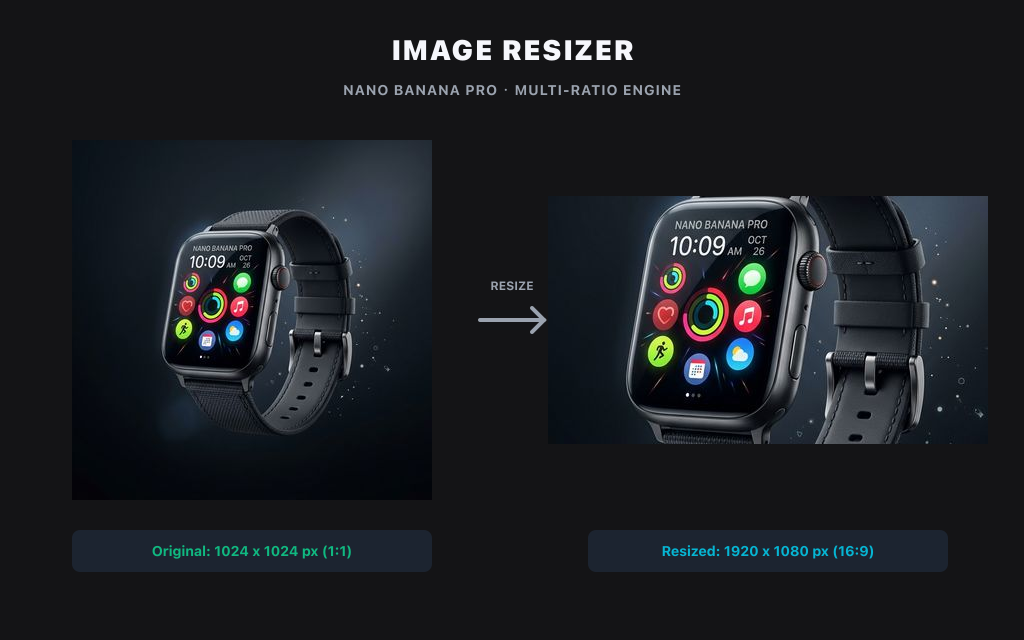
Resize WebP, PNG & JPG Images Online
Resize WebP, PNG, and JPG images online in your browser, keep aspect ratios under control, and download the result without uploading it by default.
Local image utility
Local browser processing
Images are processed with Canvas in this browser and are not uploaded to the Product API by default.
PNG / JPEG / WebP, up to 25 MB per file.
Local resize, compression, and conversion do not use credits.
No uploadNo creditsBrowser only
Preset size
Output format
Example
Resize for social posts
Choose or drop an image to process and preview it locally in this browser.
Examples

Resize product grid images

Resize for banner layouts
How to use Resize WebP, PNG & JPG Images Online
Resize WebP, PNG, and JPG images online in your browser, keep aspect ratios under control, and download the result without uploading it by default.
- 1Choose a preset such as Instagram 1:1, Story 9:16, TikTok 9:16, YouTube 16:9, Shopify 2048, or Amazon 2000.
- 2Enter a custom width and height when the asset needs an exact listing, banner, or product-grid size.
- 3Preview the resized result, download it locally, then continue to Compress or Convert when needed.
Resize WebP, PNG & JPG Images Online examples and uses
Use the local resizer when an image is already good enough visually, but the output size or ratio needs to match a channel requirement.
- 1Prepare square, vertical, and widescreen social assets without uploading the source file.
- 2Create product listing images for marketplace and storefront size rules.
- 3Resize before compression so the final file is smaller and easier to share.
Format, size and privacy
Resize WebP, PNG, and JPG images online in your browser, keep aspect ratios under control, and download the result without uploading it by default.
- 1Processing stays local in the browser.
- 2No credits are required.
- 3PNG, JPEG, and WebP are supported up to 25 MB.
Resize WebP Images Online
Resize WebP images online when you need smaller dimensions for product pages, blogs, social posts, or CMS uploads while keeping a modern web format.
- 1Keep WebP output for pages where modern browser delivery and smaller files matter.
- 2Use exact width and height values when a CMS or landing page slot requires fixed pixels.
- 3Resize before compression when the original WebP is larger than the final placement needs.
Resize PNG Images Online
Resize PNG images online when transparency, screenshots, UI exports, or design assets need a specific canvas size before publishing.
- 1Keep PNG output when transparent backgrounds or lossless edges are important.
- 2Prepare logo, icon, and cutout images for exact layout dimensions.
- 3Use custom dimensions when a marketplace, CMS, or design handoff requires a fixed PNG size.
Resize JPG Images Online
Resize JPG images online for photos, product shots, thumbnails, and banners that need a clean pixel size before upload.
- 1Use JPG output for photos where transparency is not required.
- 2Create smaller gallery, blog, email, or social preview images from large camera files.
- 3Check the preview before downloading so the resized JPG still has the crop and detail you need.
Resize Images for Shopify
Resize images for Shopify when product photos, collection thumbnails, hero banners, or store content need consistent dimensions.
- 1Use square or large product presets for storefront grids and product detail pages.
- 2Resize before uploading to keep store media lighter and more consistent.
- 3Check the final crop against your theme layout before replacing live product images.
Resize Images for Amazon
Resize images for Amazon when listing drafts, product photos, and marketplace assets need large, clean dimensions before review.
- 1Prepare large square product images from high-resolution source files.
- 2Keep the product clear, centered, and large enough for marketplace review.
- 3Treat the resized output as a draft and verify it against the current Amazon image requirements before publishing.
Channel and product presets
Resize product images for storefront grids, marketplace drafts, square posts, vertical stories, widescreen previews and custom upload limits.
- 1Use square sizes for product grids and catalog thumbnails.
- 2Use vertical ratios for stories, reels and mobile product creatives.
- 3Use custom width and height when a listing or CMS requires exact pixels.
Resize before the next tool
Resize locally before compression when the source file is larger than the final channel needs.
- 1Download the local result when no AI processing is needed.
- 2Compress after resizing to reduce upload weight.
- 3Move to AI tools only when the image needs background, enhancement or generation work.
Related tools
Explore more related image tools to continue your creative workflow:
Image WorkbenchAI Image Tools directoryPrompt libraryImage CompressorImage ConverterImage UpscalerFAQ
Does resizing upload my image?
No. The first version runs in your browser and does not upload the image by default.
Can I keep the original aspect ratio?
The page keeps aspect ratio controls visible so you can resize by width, height, or preset.
Which formats are supported?
PNG, JPEG, and WebP are the first supported input formats.
Does resizing use credits?
No. Resizing runs locally in the browser and does not use credits.
Can I resize product photos for marketplaces?
Yes. Use presets or custom dimensions, then review the final crop against the channel requirements.
Should I resize before compressing?
Yes when the source dimensions are larger than the final channel needs; resizing first usually makes compression more effective.