
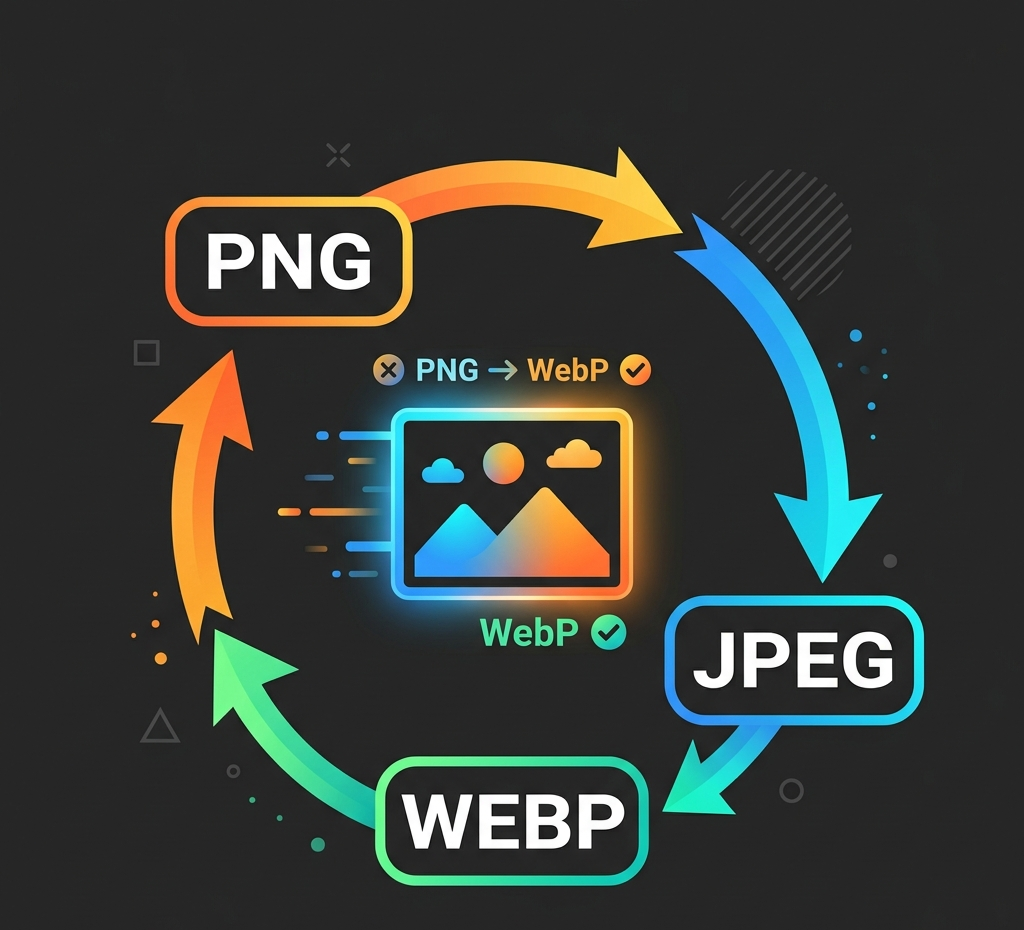
Image Converter
Convert WebP to PNG, PNG to WebP, JPG to WebP, PNG to JPG, and other PNG, JPEG, and WebP images locally in the browser.
Local image utility
Local browser processing
Images are processed with Canvas in this browser and are not uploaded to the Product API by default.
PNG / JPEG / WebP, up to 25 MB per file.
Local resize, compression, and conversion do not use credits.
No uploadNo creditsBrowser only
Output format
Quick convert
Example
Convert PNG to WebP
Choose or drop an image to process and preview it locally in this browser.
Examples

Convert WebP to JPEG

Convert JPEG to PNG
How to use Image Converter
Convert WebP to PNG, PNG to WebP, JPG to WebP, PNG to JPG, and other PNG, JPEG, and WebP images locally in the browser.
- 1Use PNG to JPG, JPG to WebP, WebP to PNG, or PNG to WebP for common publishing paths.
- 2Adjust quality when exporting JPEG or WebP so file size and visual quality stay balanced.
- 3Download the converted image, then continue to Compress or Resize for the next local edit.
Image Converter examples and uses
Use the converter when a publishing channel, marketplace, CMS, or AI workflow expects a different image format.
- 1Convert PNG screenshots or design exports to smaller WebP or JPG files.
- 2Convert WebP images to PNG when transparency or compatibility is needed.
- 3Convert before compression or resizing so the final asset matches the target format.
Format, size and privacy
Convert WebP to PNG, PNG to WebP, JPG to WebP, PNG to JPG, and other PNG, JPEG, and WebP images locally in the browser.
- 1Processing stays local in the browser.
- 2No credits are required.
- 3PNG, JPEG, and WebP are supported up to 25 MB.
Convert WebP to PNG
Convert WebP to PNG when you need a more compatible file, transparent artwork handoff, or a lossless-looking export for design and CMS workflows.
- 1Upload the WebP file, choose PNG output, then download the converted image from the browser.
- 2Use PNG when transparency or crisp UI edges matter more than the smallest file size.
- 3Compress or resize after conversion if the PNG is larger than the final channel needs.
Convert PNG to WebP
Convert PNG to WebP when screenshots, design exports, product graphics, or transparent assets need a lighter modern web format.
- 1Choose WebP output to reduce file size for websites, blogs, product pages, and CMS uploads.
- 2Keep the PNG source when the original transparent or lossless file still needs to be archived.
- 3Adjust quality before download when a smaller WebP matters more than exact pixel preservation.
Convert JPG to WebP
Convert JPG to WebP for photo-heavy pages, storefront galleries, thumbnails, and marketing assets that need smaller web files.
- 1Use WebP output for modern browsers when the source is a photo or product image without transparency.
- 2Tune quality to balance download size, visible detail, and page speed.
- 3Keep JPG available when a legacy upload channel does not accept WebP yet.
Convert PNG to JPG
Convert PNG to JPG when a transparent background is not needed and the target channel expects a standard photo-style file.
- 1Use JPG for photos, filled-background product shots, blog images, and email-friendly assets.
- 2Avoid JPG when alpha transparency, sharp UI edges, or lossless artwork must be preserved.
- 3Review the preview before download because JPG output flattens transparency.
When to use PNG, JPEG or WebP
Choose the output format based on transparency, file size, browser support, and where the image will be published.
- 1Use PNG for transparency, screenshots, UI assets, logos, and sharp edges.
- 2Use JPEG or JPG for photos and filled-background images where broad compatibility matters.
- 3Use WebP for modern web pages when smaller files and good visual quality are the priority.
Related tools
Explore more related image tools to continue your creative workflow:
Image WorkbenchAI Image Tools directoryPrompt libraryResize WebP, PNG & JPG Images OnlineImage CompressorImage to PromptFAQ
Which output formats are supported?
The first release converts PNG, JPEG, and WebP in the browser.
Does conversion upload my image?
No. Conversion is local and does not call the Product API by default.
Can I continue to AI tools after conversion?
Yes. Convert or resize before moving into AI generation, enhancement, or background tools.
How do I convert WebP to PNG?
Upload the WebP file, select PNG output, and download the converted PNG locally from your browser.
How do I convert PNG to WebP?
Upload a PNG image, choose WebP output, adjust quality if needed, and download a smaller modern web file.
How do I convert JPG to WebP?
Upload the JPG or JPEG photo, choose WebP output, then use the quality control to balance detail and file size.
How do I convert PNG to JPG?
Upload the PNG, choose JPEG output, review the flattened preview, and download the JPG when transparency is not needed.
When should I use PNG, JPEG, or WebP?
Use PNG for transparency and sharp edges, JPEG for broad photo compatibility, and WebP for smaller modern web assets.