
Back/

Transparent Background

Prepare transparent-background image cutouts with a controlled Product workflow and clean alpha output.

Tool runner

Private
Source image
Output
Transparent PNG
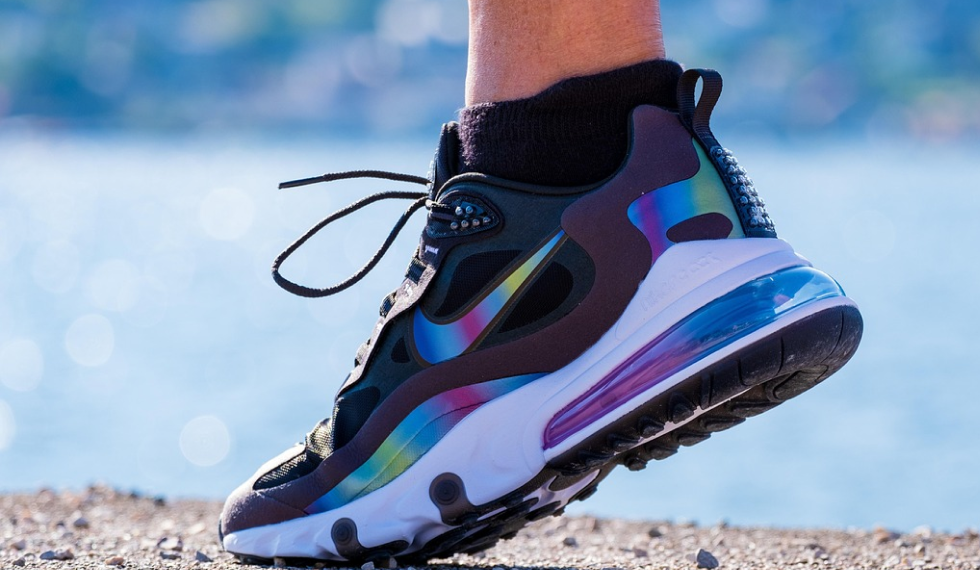
Before
Before
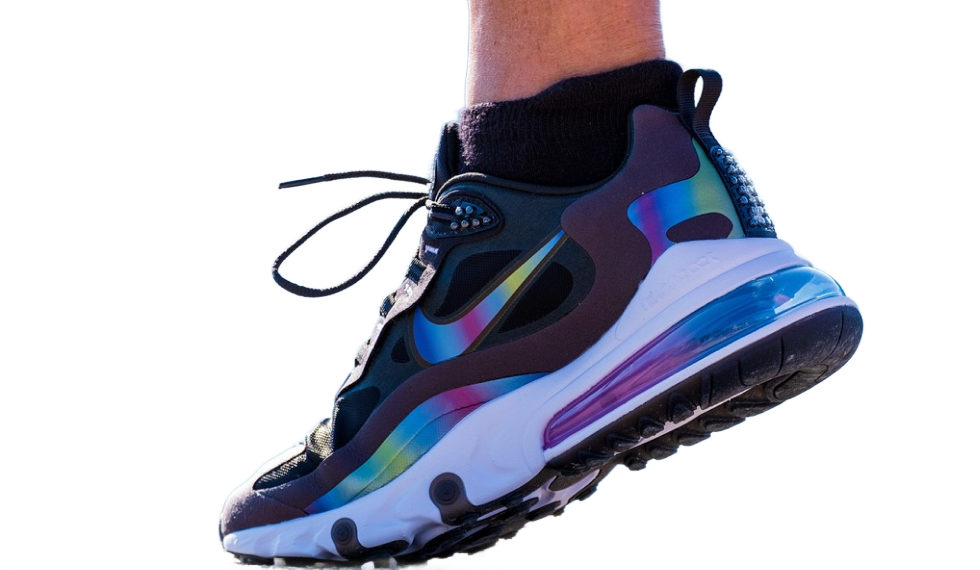
After
After
Example

Transparent cutout preview

Upload or select a reference image on the left, then preview and compare the processed result here.

Transparent Background workflow

Prepare transparent-background image cutouts with a controlled Product workflow and clean alpha output.

  • 1Start with the runner at the top of the page.
  • 2Review the examples and input notes before exporting.
  • 3Use related tools to continue the visual workflow.

Transparent Background use cases

Use background tools to prepare clean cutouts, white-background product photos and marketplace listing images.

  • 1Create transparent cutouts, white backgrounds and product-photo variants.
  • 2Prepare catalog, listing, ad and social media assets.
  • 3Continue into background generation, upscaling or image editing when those tools are available.

Availability and workflow

Check the workflow notes, availability details, and related tools before continuing with a generated or uploaded image.

Transparent PNG workflows

Transparent cutouts help product pages, ad compositions, slide decks, thumbnails and design overlays reuse the same subject in many layouts.

  • 1Use clear subject edges when alpha output matters.
  • 2Check the transparent result against light and dark backgrounds.
  • 3Continue to white background or generated background when the final channel needs a filled scene.

Transparency review boundary

Alpha output and edge quality still depend on provider support and the source image.

  • 1Review fine edges, shadows and transparent materials before publishing.
  • 2Use images you own or have permission to edit.
  • 3Compress or resize the final PNG only after checking transparency.

FAQ

Does this create a PNG with alpha?

The tool removes the source background and returns a transparent cutout when the provider supports alpha output.

Which images work best?

Use product, portrait, or object images with clear subject edges for the best cutout.

Where is my image processed?

Uploaded files are processed by Voloshow and the configured provider according to the active Product configuration.

Does this create a PNG with transparency?

The workflow targets transparent cutouts when the configured provider supports alpha output.

Can I put the cutout on a white or generated background?

Yes. Continue to White Background or AI Background Generator after reviewing the transparent result.

Can I use transparent cutouts commercially?

Only use images and subjects you have rights to edit, and review the final design before publishing.